How to Convert MOV to MP4 on Windows & Mac
Updated August 31, 2026
MOV is Apple's video format. iPhones and QuickTime produce it, Macs love it, and everything else tolerates it at best. If a MOV won't play on a Windows PC, won't upload to a site, or won't open in your editor, converting it to MP4 fixes the problem, because MP4 plays on effectively everything.
This guide uses ConvertSave, a drag-and-drop converter for Windows and Mac that converts your videos on your own computer, offline. No uploading a 2 GB video to a website and waiting to download it back.
How to convert MOV to MP4
- 1
Drag your files into ConvertSave
Open ConvertSave and drag your MOV files into the window. You can drop one file or a whole selection at once. There is no upload step, because the files never leave your computer.
- 2
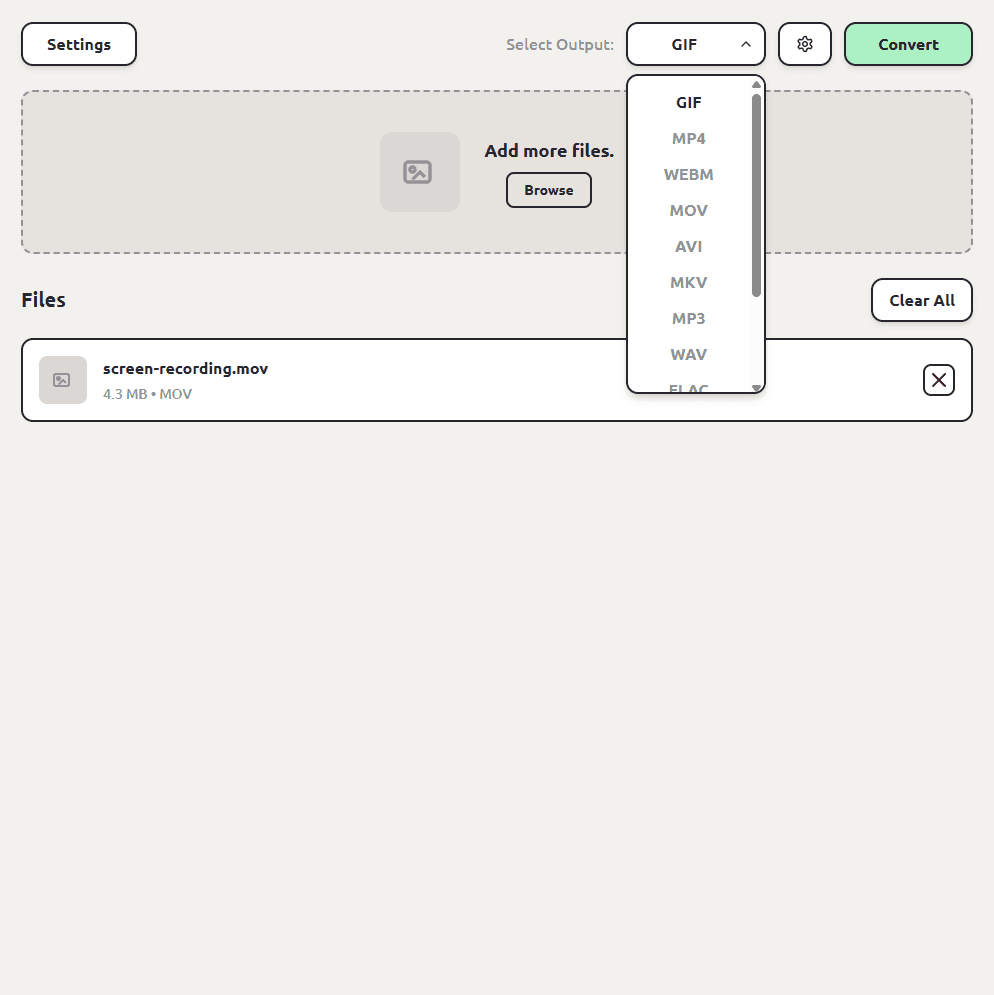
Choose MP4 as the output format
Pick MP4 from the format list. ConvertSave shows the formats that make sense for the files you dropped, so MP4 is right there.
- 3
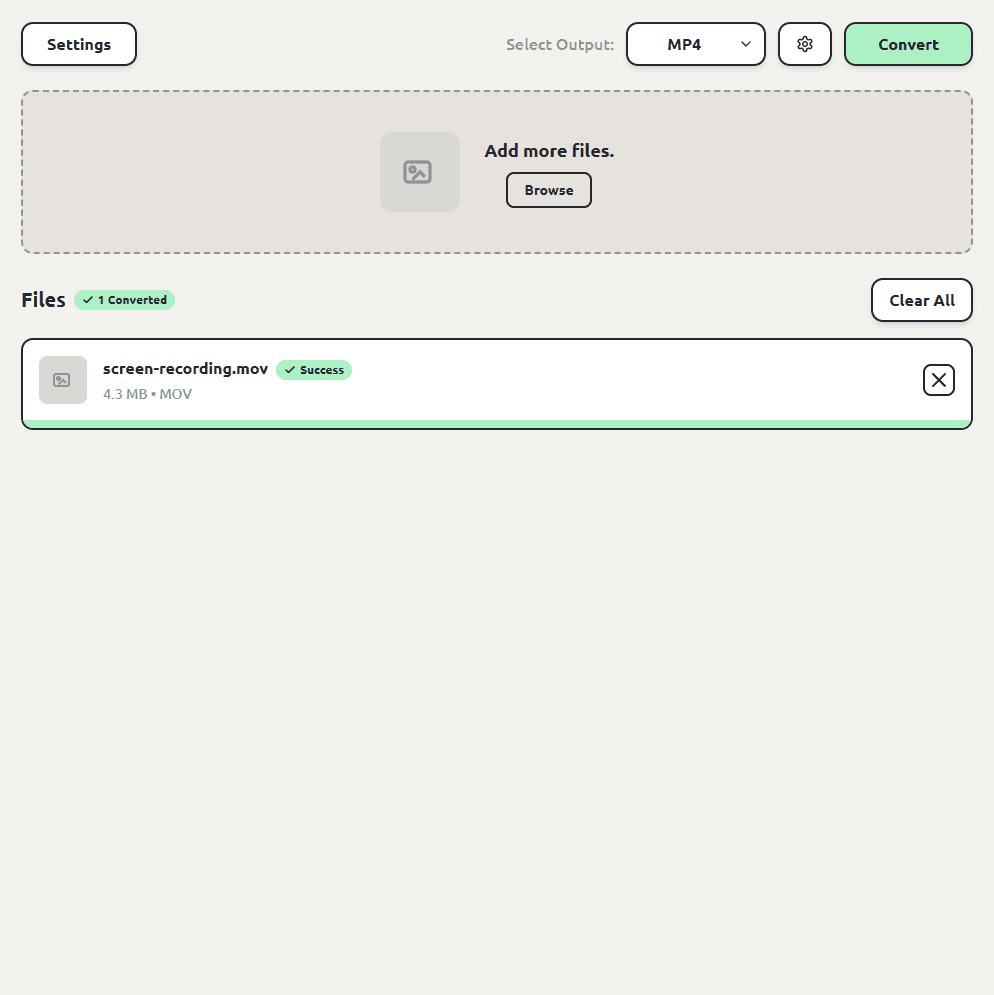
Click Convert
Hit the Convert button. Each MP4 file is saved next to the original, so you don't have to hunt through folders to find your converted files. The originals are left untouched.
How to convert MOV to MP4 on Windows
Windows is usually why you're converting in the first place. Someone sent you an iPhone video, and your PC either won't play it or your software won't accept it. Drag the MOV into ConvertSave, pick MP4, and convert. The MP4 is saved next to the MOV, and the original is untouched.
How to convert MOV to MP4 on Mac
Macs play MOV natively, so on a Mac the reason to convert is sharing: sending video to Windows people, uploading to a platform that prefers MP4, or feeding an app that won't take MOV. QuickTime's export options keep you in MOV, so they don't help here. ConvertSave runs natively on macOS with the same drag, pick MP4, convert flow, and one license covers your Mac and PC.
Quality, resolution, and frame rate settings
The defaults are chosen to just work, but the conversion is adjustable. ConvertSave has an advanced panel where you can set video quality with a slider, change the resolution or frame rate as part of the conversion, and even see and edit the underlying FFmpeg options if you know your way around them. There's an options builder for picking settings from a friendly list, with an info icon explaining each one. Settings you build can be saved per output format, so your MP4 setup sticks around for next time.
How to batch convert MOV to MP4
Select every MOV you want converted, drag the whole selection in, pick MP4 once, and click Convert. Each MP4 lands next to its source file with the same name. We've tested batches of up to a thousand files, so a whole camera roll of iPhone clips is fine.
Need to go the other way? MP4 to MOV
Some Apple software is happiest with MOV, so the reverse conversion comes up too, usually when a Windows-made MP4 needs to go into an old iMovie or Final Cut workflow. Same steps: drag the MP4 in and pick MOV as the output.
MOV vs MP4: what's the difference?
They're closely related containers, and often the video inside them is compressed the same way. The difference that matters day to day is compatibility.
| MOV | MP4 | |
|---|---|---|
| Made by | Apple (QuickTime) | Industry standard |
| Plays on | Apple devices, some Windows apps | Effectively everything |
| Produced by | iPhones, QuickTime, some cameras | Most phones, cameras, and screen recorders |
| Best for | Apple editing workflows | Sharing, uploading, playing anywhere |
Is MOV to MP4 conversion safe?
The risk with converting MOV to MP4 isn't the conversion itself, it's where the conversion happens. Free converter websites work by uploading your file to someone else's server. You usually can't tell who runs the server, where it is, or how long your file sticks around after the conversion finishes. For personal videos and photos that's a real privacy trade, and it's the reason so many of those sites are covered in aggressive ads.
ConvertSave does the conversion on your own computer. Nothing is uploaded anywhere. You can turn off Wi-Fi entirely and it still works, which is also the easy way to verify the claim. Your original file is never modified, and the converted copy is written right next to it.
Frequently asked questions
Does converting MOV to MP4 lose quality?
At ConvertSave's default settings the difference isn't visible in normal viewing. If you want tighter control, the advanced panel lets you set the quality yourself, along with resolution and frame rate.
Why won't my MOV file play on Windows?
MOV is Apple's QuickTime format, and Windows apps support it inconsistently, especially older ones. Converting the file to MP4 sidesteps the problem, since MP4 plays everywhere.
Can I convert a lot of MOV files at once?
Yes. Drag them all in and convert them in one batch. We've tested up to a thousand files at a time.
Does my video get uploaded anywhere?
No. The conversion runs on your computer and works offline. For large videos this is also just faster, because there's no upload and no download.
Is ConvertSave free?
There's a 7-day free trial with all features unlocked. After that it's $9/month, $60/year, or $129 once for a lifetime license that covers 3 personal devices on Mac and Windows.