How to Convert MP4 to MP3 on Windows & Mac
Updated August 31, 2026
MP4 is a video format. MP3 is an audio format. Converting one to the other means pulling the audio track out of the video and saving it as its own file, which is what you want when you only care about the sound: a lecture recording, a song from a video, a podcast episode someone posted as video.
This guide shows how to do that with ConvertSave, a drag-and-drop converter that runs offline on Windows and Mac. Your files stay on your computer the whole time.
How to convert MP4 to MP3
The whole process is three steps and takes seconds for a typical video.
- 1
Drag your files into ConvertSave
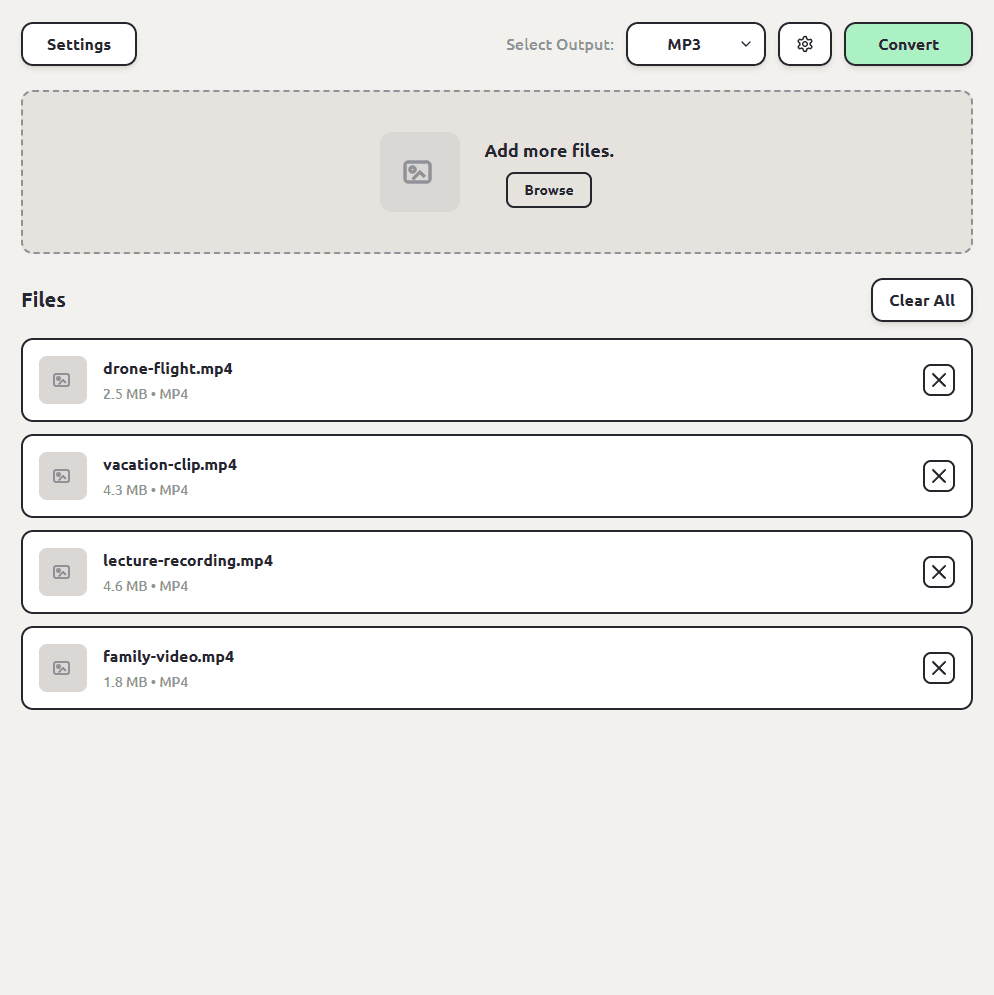
Open ConvertSave and drag your MP4 files into the window. You can drop one file or a whole selection at once. There is no upload step, because the files never leave your computer.
- 2
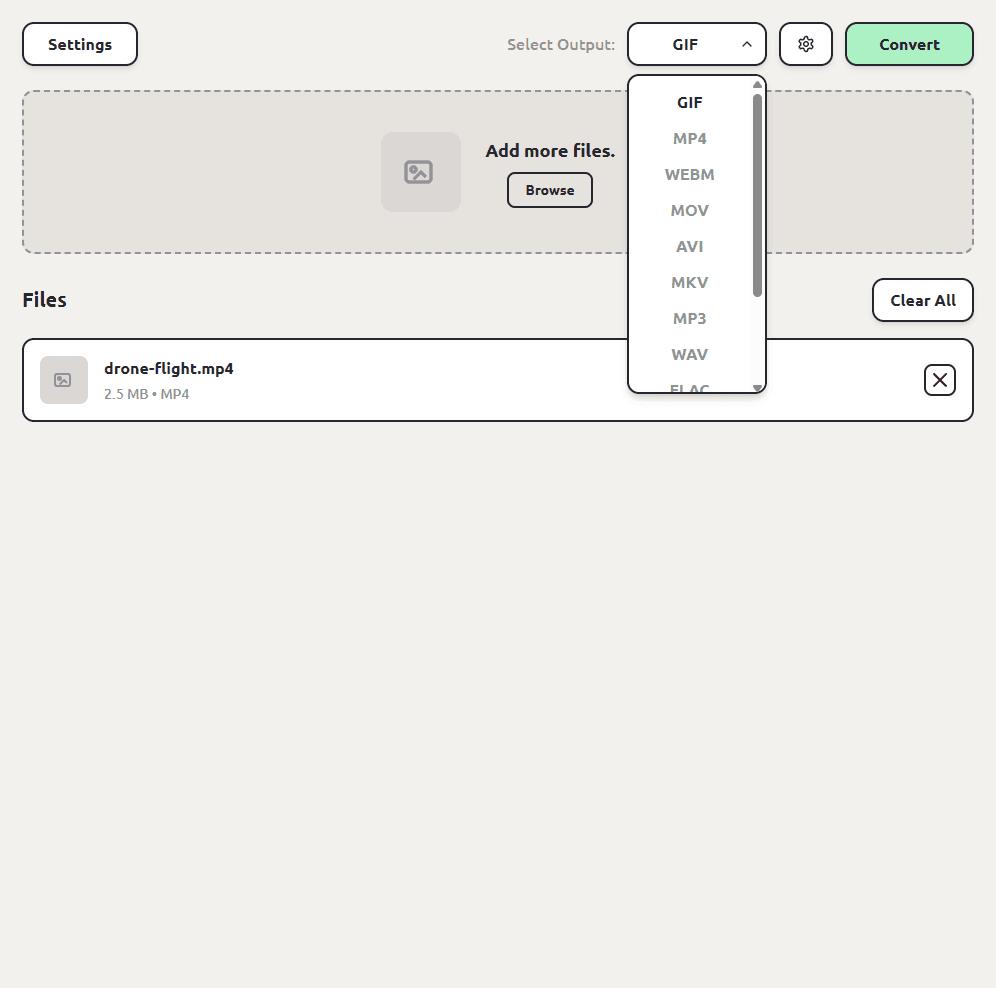
Choose MP3 as the output format
Pick MP3 from the format list. ConvertSave shows the formats that make sense for the files you dropped, so MP3 is right there.
- 3
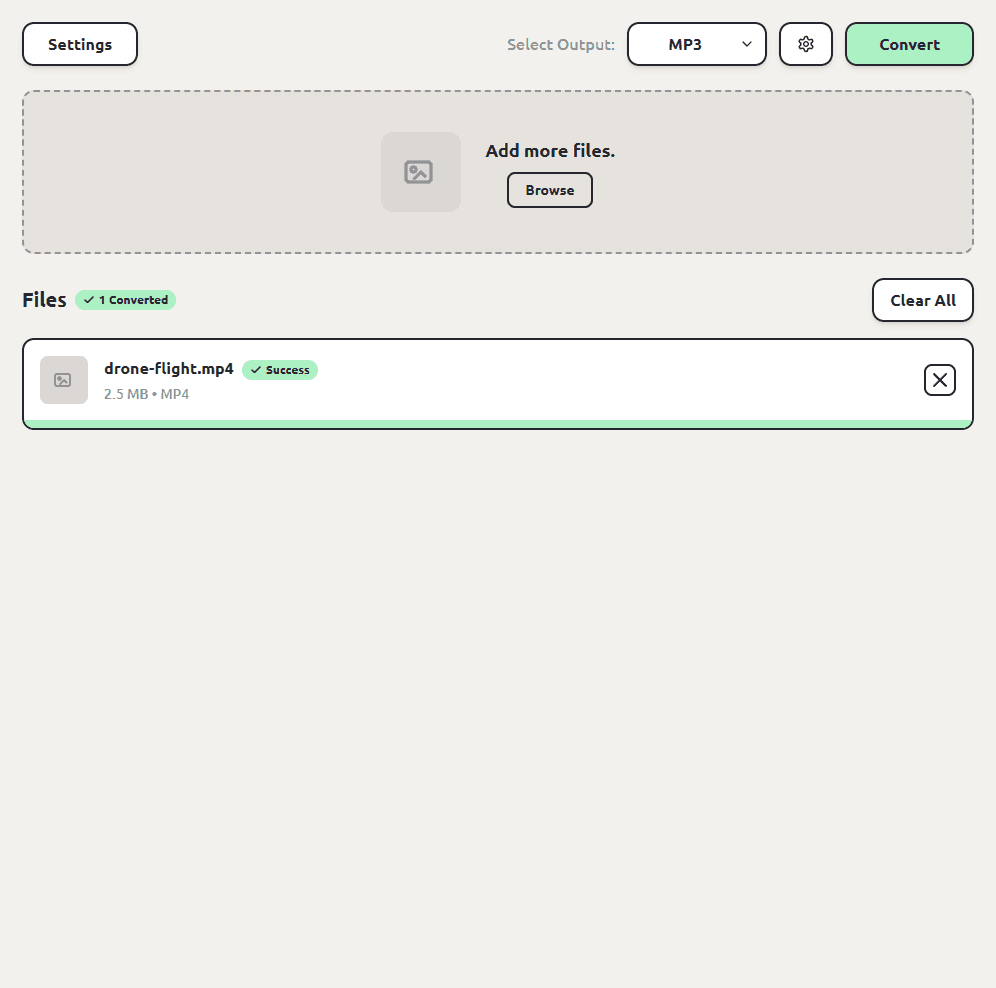
Click Convert
Hit the Convert button. Each MP3 file is saved next to the original, so you don't have to hunt through folders to find your converted files. The originals are left untouched.
How to convert MP4 to MP3 on Windows
Windows doesn't ship with an MP4 to MP3 converter. Media Player can play the video, but there's no built-in export to MP3, which is why most people end up at an upload-your-file website. ConvertSave gives you the same drag-in, convert, done flow on Windows 10 and 11, and the conversion runs locally on your PC.
Drag the MP4 in, pick MP3, click Convert. The MP3 lands in the same folder as the video.
How to convert MP4 to MP3 on Mac
The steps on a Mac are identical, and the app looks the same. Apple's built-in options don't quite get you there: QuickTime can export audio only as M4A, and the Music app can make MP3s but only for files you've added to your library first. If you specifically need an MP3, converting the file directly is less fuss.
ConvertSave runs natively on macOS. Drag the MP4 into the window, choose MP3, and convert. One license covers both platforms, so you can use it on your Mac and your PC.
How to convert MP4 to MP3 for free
ConvertSave has a 7-day free trial with everything unlocked, so a one-off batch of conversions costs nothing. Start the trial, convert your files, and decide afterward whether you want to keep it.
If you'd rather not install anything, free converter websites exist, but read the safety section below before uploading personal videos to one.
MP4 to WAV, M4A, and other audio formats
MP3 is the safe default because everything plays it, but it isn't the only option. The same three steps work for any audio output: pick WAV if you're editing the audio afterward and want an uncompressed file, M4A or AAC for Apple-friendly compressed audio, FLAC for lossless archiving, or OGG for open-source tooling.
How to batch convert MP4 to MP3
Nothing changes. Select all the MP4s in Finder or File Explorer, drag the whole selection into ConvertSave, pick MP3 once, and click Convert. Every file is converted and saved next to its original. We've tested batches of up to a thousand files, so a season of lecture recordings is not a problem.
MP4 vs MP3: what's the difference?
The names are one letter apart but the formats do different jobs. MP4 is a container that holds video, audio, and sometimes subtitles together. MP3 holds compressed audio and nothing else. Converting MP4 to MP3 keeps the sound and throws away the picture, which is why the output file is so much smaller.
| MP4 | MP3 | |
|---|---|---|
| What it holds | Video + audio + subtitles | Audio only |
| Typical size, 10 minutes | Roughly 300 MB to 1 GB at 1080p | Roughly 10 to 20 MB |
| Best for | Watching | Music, podcasts, listening on the go |
| Plays on | Most modern devices | Practically everything made since the late 90s |
Is MP4 to MP3 conversion safe?
The risk with converting MP4 to MP3 isn't the conversion itself, it's where the conversion happens. Free converter websites work by uploading your file to someone else's server. You usually can't tell who runs the server, where it is, or how long your file sticks around after the conversion finishes. For personal videos and photos that's a real privacy trade, and it's the reason so many of those sites are covered in aggressive ads.
ConvertSave does the conversion on your own computer. Nothing is uploaded anywhere. You can turn off Wi-Fi entirely and it still works, which is also the easy way to verify the claim. Your original file is never modified, and the converted copy is written right next to it.
Frequently asked questions
Does converting MP4 to MP3 reduce quality?
The MP3 can only be as good as the audio track inside the MP4, and MP3 compression trims data your ear is unlikely to miss at reasonable bitrates. For speech and most music you won't hear a difference. If you need a perfect copy of the audio, convert to WAV or FLAC instead; ConvertSave supports both.
Does the conversion change my original MP4?
No. ConvertSave reads the MP4 and writes a new MP3 next to it. The original video is untouched.
Can I convert many MP4s at once?
Yes. Drag in as many files as you want and convert them in one batch. We've tested up to a thousand files at a time.
Do I need to be online?
No. Conversions run entirely on your computer, so ConvertSave works with Wi-Fi off. Nothing is uploaded.
Is ConvertSave free?
There's a 7-day free trial with all features unlocked. After that it's $9/month, $60/year, or $129 once for a lifetime license that covers 3 personal devices on Mac and Windows.