How to Convert HEIC to JPG on Windows & Mac
Updated August 31, 2026
iPhones have saved photos as HEIC by default since iOS 11. It's a good format, roughly half the file size of a JPG at the same quality, but the rest of the world hasn't caught up. Windows often can't open HEIC without a paid codec, older software chokes on it, and plenty of websites reject it outright.
The fix is converting to JPG, which opens everywhere. This guide shows how to do that with ConvertSave on Windows and Mac, including converting hundreds of photos at once, and your photos never get uploaded to anyone's server.
How to convert HEIC to JPG
- 1
Drag your files into ConvertSave
Open ConvertSave and drag your HEIC photos into the window. You can drop one file or a whole selection at once. There is no upload step, because the files never leave your computer.
- 2
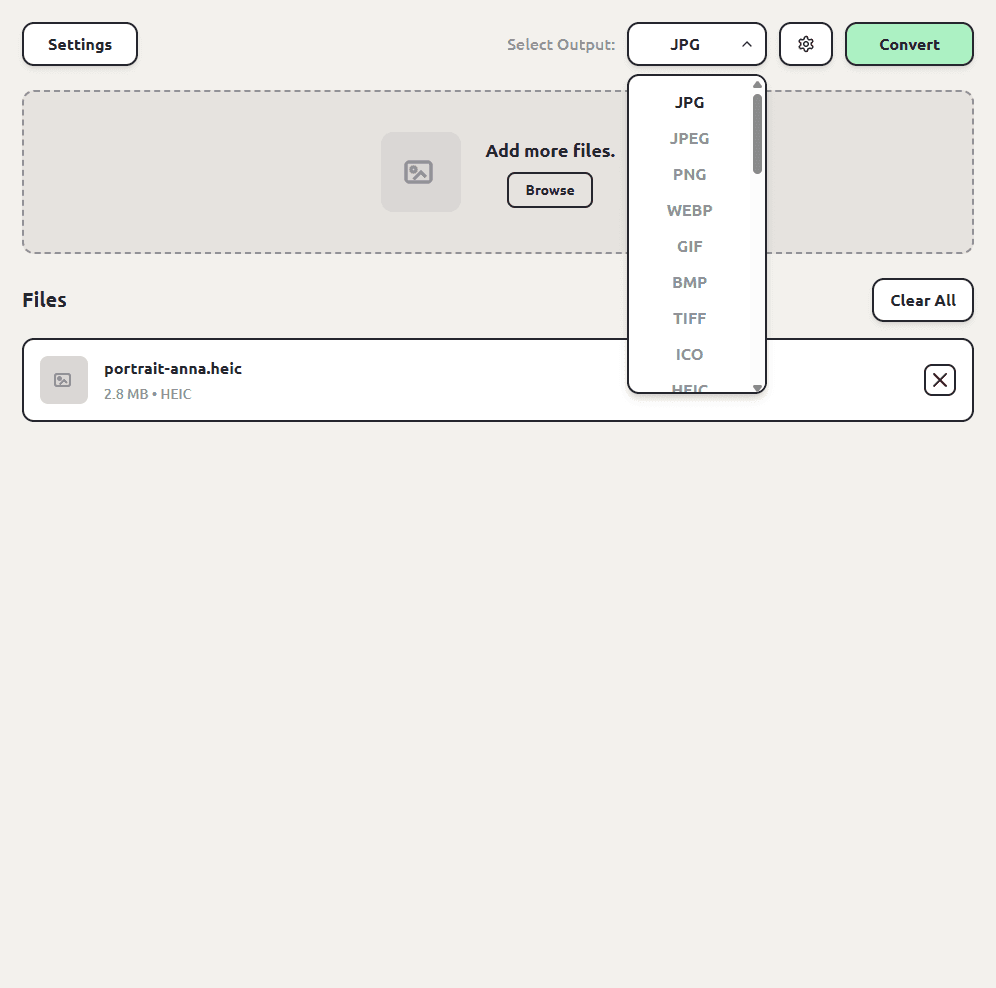
Choose JPG as the output format
Pick JPG from the format list. ConvertSave shows the formats that make sense for the files you dropped, so JPG is right there.
- 3
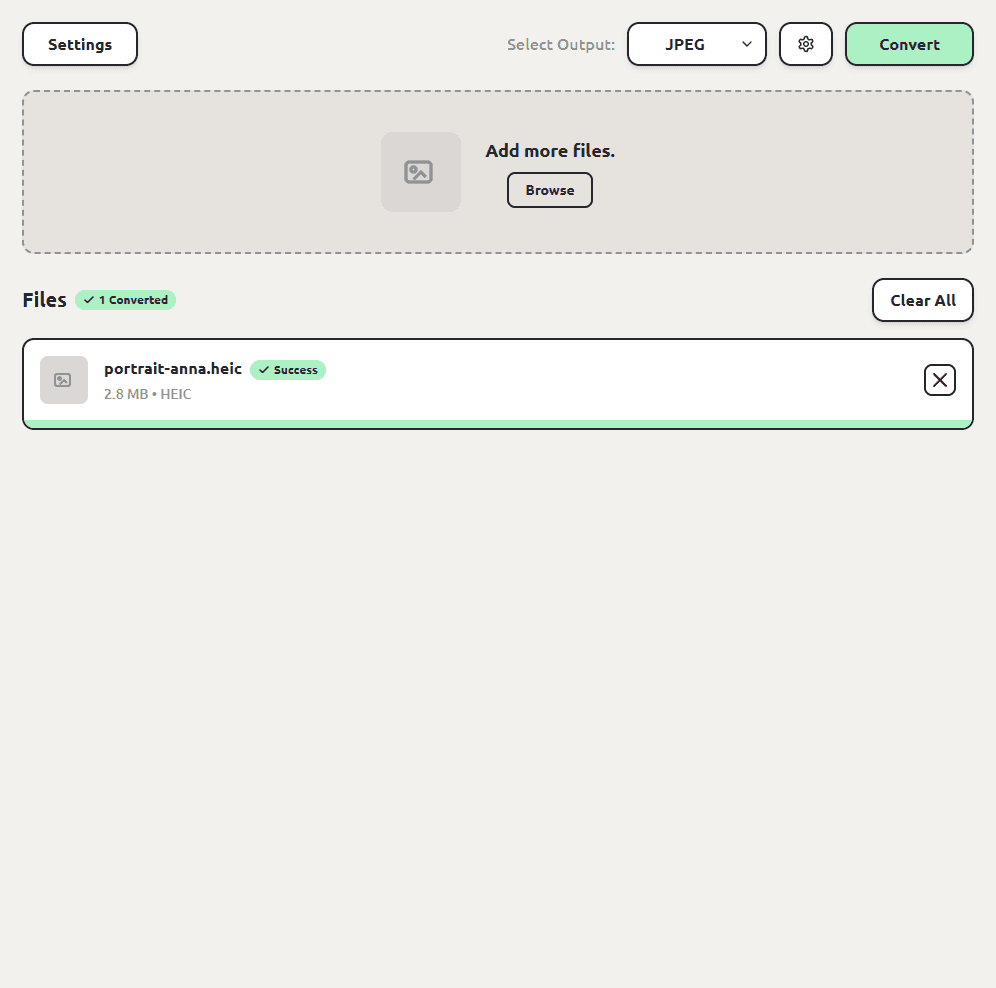
Click Convert
Hit the Convert button. Each JPG file is saved next to the original, so you don't have to hunt through folders to find your converted files. The originals are left untouched.
How to convert HEIC to JPG on Windows
Windows is where HEIC hurts the most. Photos may refuse to open your iPhone pictures until you buy the HEVC Video Extensions from the Microsoft Store, and even then older apps still won't read them. Converting to JPG sidesteps the whole mess.
Copy the photos from your iPhone to your PC, drag them into ConvertSave, pick JPG, and convert. The JPGs appear next to the HEIC files, ready for any app, printer, or website.
How to convert HEIC to JPG on Mac
Macs open HEIC fine, so the reason to convert is usually sharing: sending photos to someone on Windows or uploading to a site that wants JPG. macOS can do one-off conversions itself. Right-click a photo in Finder and look for Quick Actions, then Convert Image, or open it in Preview and use File, then Export.
Those built-in routes get clumsy past a handful of photos. Preview makes you export one at a time with a dialog for each. With ConvertSave you drag the whole selection in, pick JPG once, and every photo converts in one pass.
How to convert HEIC to JPG for free
ConvertSave's 7-day free trial has everything unlocked, including batch conversion, so a camera roll's worth of photos costs nothing to convert. On a Mac, Preview is free too if you only have a photo or two and don't mind the per-file dialogs.
The free options to be careful with are the converter websites. Uploading family photos to an anonymous server is exactly the kind of thing the safety section below is about.
How to batch convert HEIC to JPG
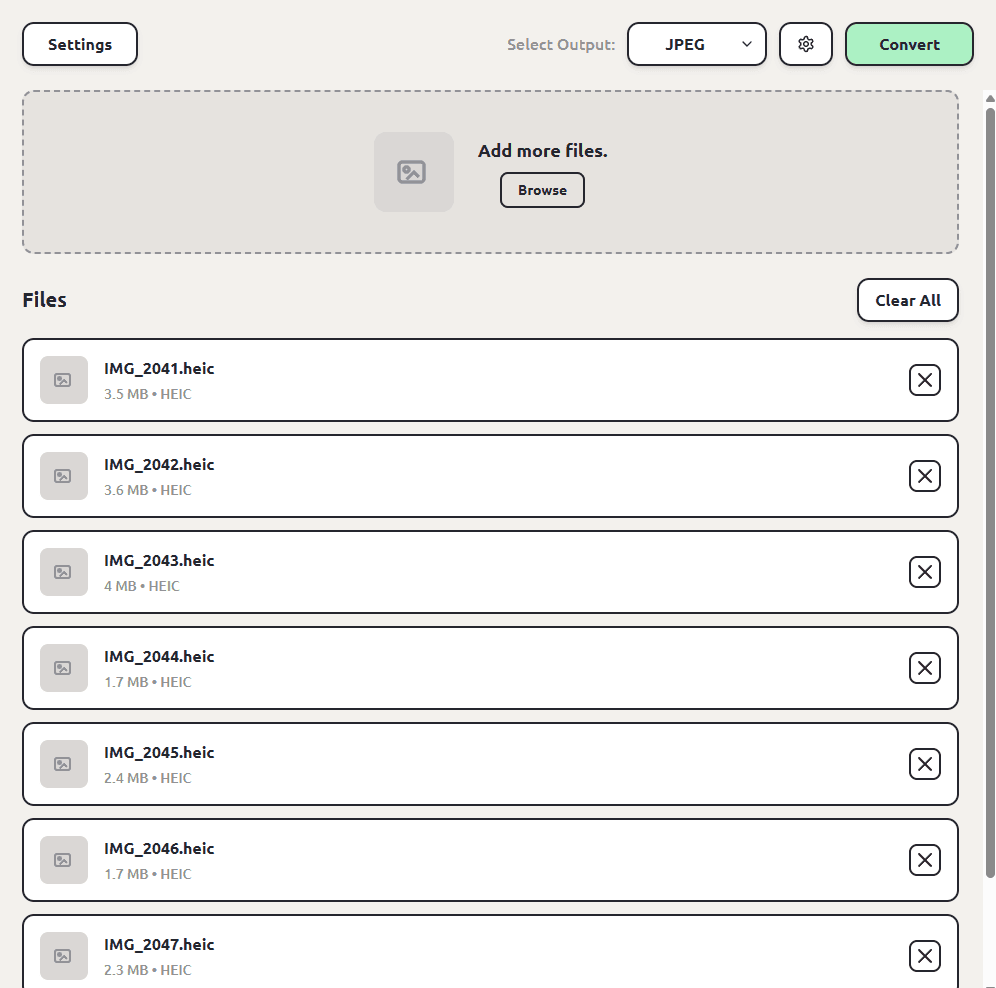
This is the case that actually matters, because nobody has one HEIC file. They have four hundred, because that's what a vacation looks like in your camera roll. Select them all, drag the selection into ConvertSave, pick JPG, click Convert once. We've tested batches of up to a thousand files.
HEIC vs JPG: what's the difference?
HEIC compresses smarter, so Apple uses it to save space on your phone. JPG compresses worse but opens on everything made in the last 30 years. That's the whole trade.
| HEIC | JPG | |
|---|---|---|
| File size | Smaller, roughly half of JPG at similar quality | Larger |
| Compatibility | Apple devices, some newer software | Effectively universal |
| Used by | iPhone camera (default since iOS 11) | Everything else |
| Best for | Storing photos on Apple devices | Sharing, uploading, printing |
One naming note: JPG and JPEG are the same format. The three-letter version exists because old Windows only allowed three-letter file extensions. Converting HEIC to JPEG and HEIC to JPG are the same conversion.
Is HEIC to JPG conversion safe?
The risk with converting HEIC photos isn't the conversion itself, it's where the conversion happens. Free converter websites work by uploading your file to someone else's server. You usually can't tell who runs the server, where it is, or how long your file sticks around after the conversion finishes. For personal videos and photos that's a real privacy trade, and it's the reason so many of those sites are covered in aggressive ads.
ConvertSave does the conversion on your own computer. Nothing is uploaded anywhere. You can turn off Wi-Fi entirely and it still works, which is also the easy way to verify the claim. Your original file is never modified, and the converted copy is written right next to it.
Frequently asked questions
Why are my iPhone photos HEIC in the first place?
Apple switched the default camera format to HEIC in iOS 11 because it stores the same photo in about half the space. You can make your iPhone shoot JPG instead under Settings, then Camera, then Formats, then Most Compatible, at the cost of larger files.
Does converting HEIC to JPG lose quality?
Both formats are compressed, and re-encoding always costs a little. In practice a JPG converted at high quality is indistinguishable from the original photo for sharing, printing, and everyday use.
Can I convert a whole folder of HEIC photos at once?
Yes. Drag the whole selection into ConvertSave and convert them in one batch. We've tested up to a thousand files at a time.
Does the conversion keep my photo's metadata?
Yes. The JPG keeps the photo's metadata; the conversion only changes the image format. Your original HEIC files aren't modified either.
Do my photos get uploaded anywhere?
No. ConvertSave converts on your computer and works offline. Your photos never leave your machine.
Is ConvertSave free?
There's a 7-day free trial with all features unlocked. After that it's $9/month, $60/year, or $129 once for a lifetime license that covers 3 personal devices on Mac and Windows.