How to Convert Audio Files on Windows & Mac
Updated August 31, 2026
Every audio format is a trade between size, quality, and what will actually play it. This page is the map: how to convert between all of them with one offline tool, and which format to pick for what you're doing.
The mechanics never change in ConvertSave: drag audio in, pick the output, convert. Files save next to their originals on Windows and Mac, nothing is uploaded.
How to convert any audio file
- 1
Drag your files into ConvertSave
Open ConvertSave and drag your audio files into the window. You can drop one file or a whole selection at once. There is no upload step, because the files never leave your computer.
- 2
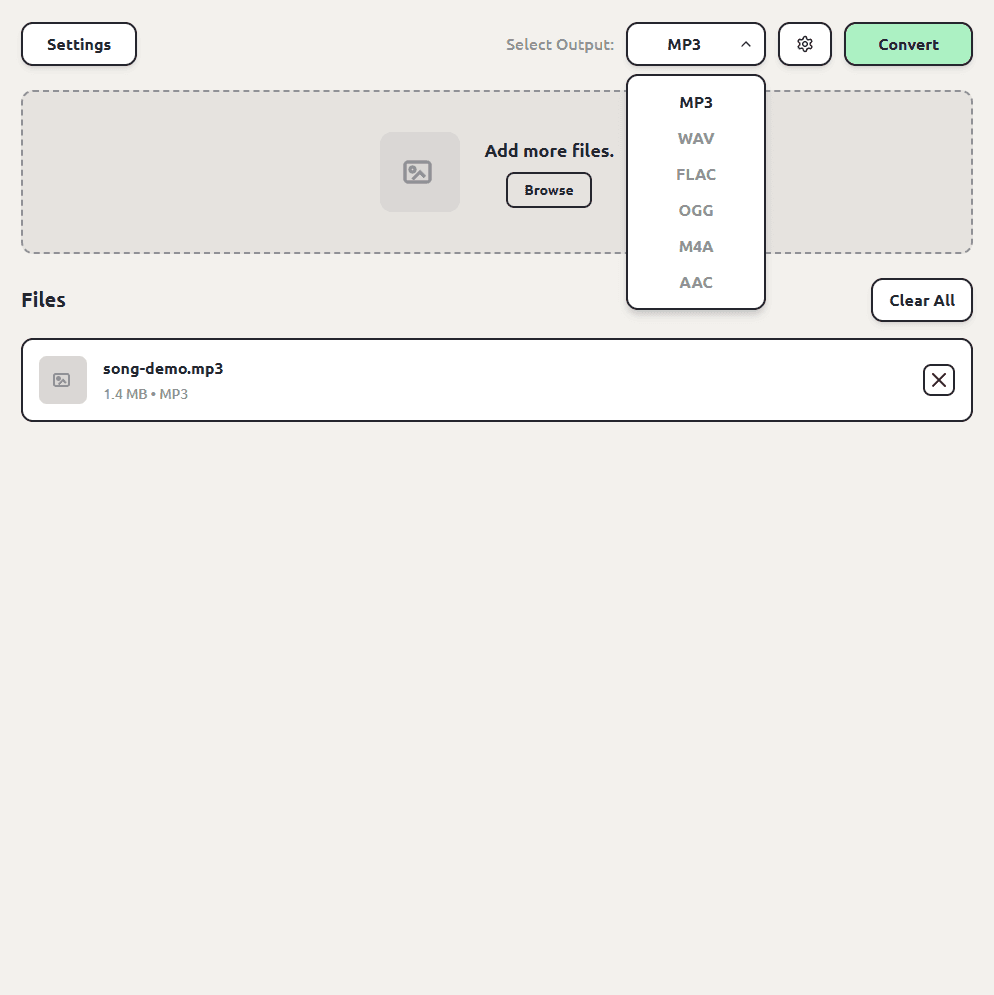
Choose FLAC as the output format
Pick FLAC from the format list. ConvertSave shows the formats that make sense for the files you dropped, so FLAC is right there.
- 3
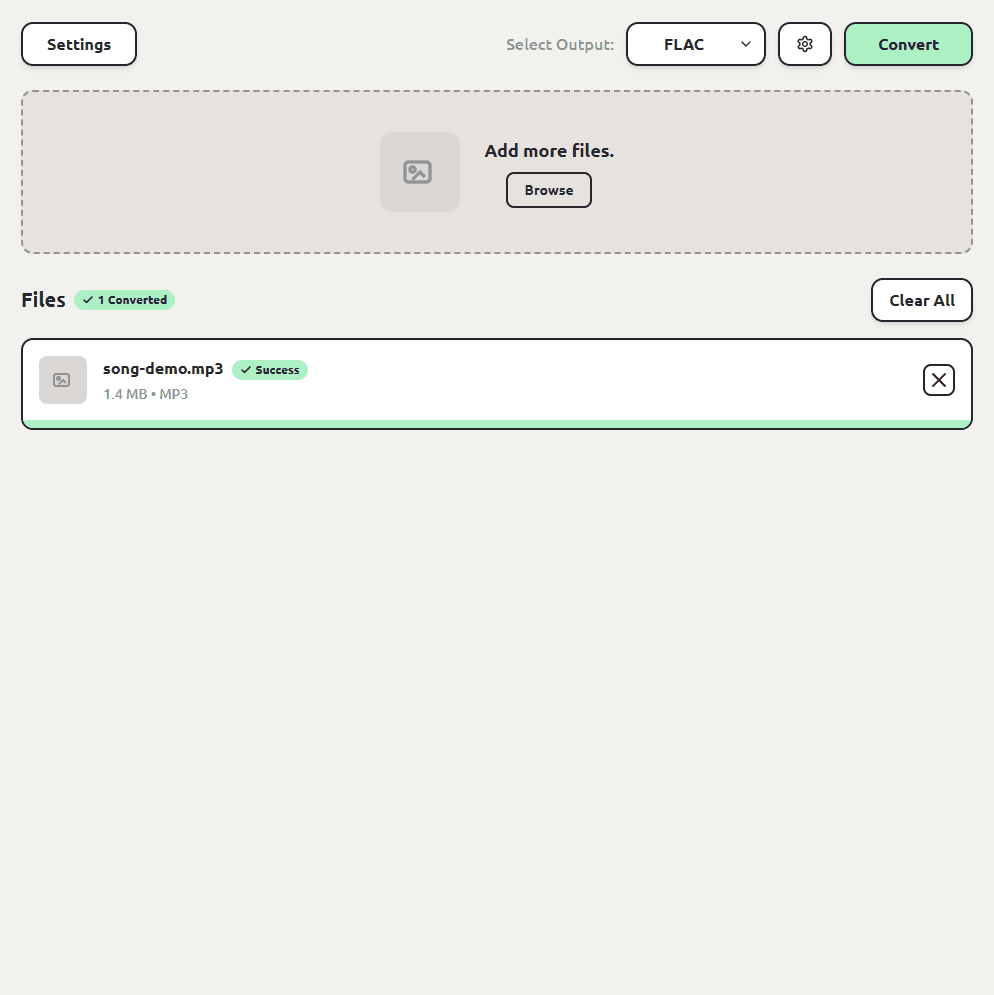
Click Convert
Hit the Convert button. Each FLAC file is saved next to the original, so you don't have to hunt through folders to find your converted files. The originals are left untouched.
Which audio format should you pick?
| Format | Type | Pick it for |
|---|---|---|
| MP3 | Lossy | Playing anywhere; the universal default |
| WAV | Uncompressed | Editing, DAWs, production |
| FLAC | Lossless | Archiving music without quality loss |
| M4A / AAC | Lossy | Apple devices, smaller-than-MP3 files |
| OGG | Lossy | Open-source tooling, games |
The deep dives live in their own guides: convert to MP3, convert to WAV, WAV to MP3, MP3 to WAV, M4A to MP3, and AAC to MP3.
Converting to M4A
M4A gets you slightly better quality per megabyte than MP3 and first-class treatment on Apple devices. Same three steps with M4A as the output.
Converting to AAC or OGG
AAC is the raw form of the same audio M4A carries; some tools ask for it directly. OGG serves the open-source world and game engines. Both sit in the same output list as everything else.
Batch converting audio
Any mix of input formats can share the queue and convert to one output in a single pass. We've tested batches of up to a thousand files.
Is audio conversion safe?
The risk with converting your recordings and music isn't the conversion itself, it's where the conversion happens. Free converter websites work by uploading your file to someone else's server. You usually can't tell who runs the server, where it is, or how long your file sticks around after the conversion finishes. For personal videos and photos that's a real privacy trade, and it's the reason so many of those sites are covered in aggressive ads.
ConvertSave does the conversion on your own computer. Nothing is uploaded anywhere. You can turn off Wi-Fi entirely and it still works, which is also the easy way to verify the claim. Your original file is never modified, and the converted copy is written right next to it.
Frequently asked questions
Does converting between lossy formats hurt quality?
Each lossy re-encode costs a little, though one conversion at normal bitrates isn't audible in everyday listening. When quality is critical, convert from the original source, or work in WAV or FLAC.
What's the best format for archiving music?
FLAC. It's lossless like WAV but roughly half the size, and it converts back to anything later without loss.
Can I convert video files here too?
Yes. Drop in an MP4 or MOV and pick an audio output; the soundtrack is extracted. The video to MP3 guide covers that path.
Do my files get uploaded anywhere?
No. ConvertSave converts on your computer and works offline.
Is ConvertSave free?
There's a 7-day free trial with all features unlocked. After that it's $9/month, $60/year, or $129 once for a lifetime license that covers 3 personal devices on Mac and Windows.